How to Get Your Business on Google Maps So Customers Can Find You
- Getting on Google Maps is free and takes an afternoon — but you must complete verification before you can optimize your profile.
- Real photos, accurate hours, and a specific description are the three things that make customers choose you over the shop next door.
- Ask for reviews proactively when customers are happy, always respond to both praise and criticism, and never buy fake reviews.
- Your name, address, and phone number must match exactly between Maps and your website for Google to trust both.
- Avoid keyword stuffing in your business name, wrong pin placement, and neglecting the profile; ten minutes a week of upkeep is all it takes.
Most shop owners assume getting their business on Google Maps is complicated or costs money. It's actually free, takes an afternoon, and is the cheapest way for nearby customers to find you.
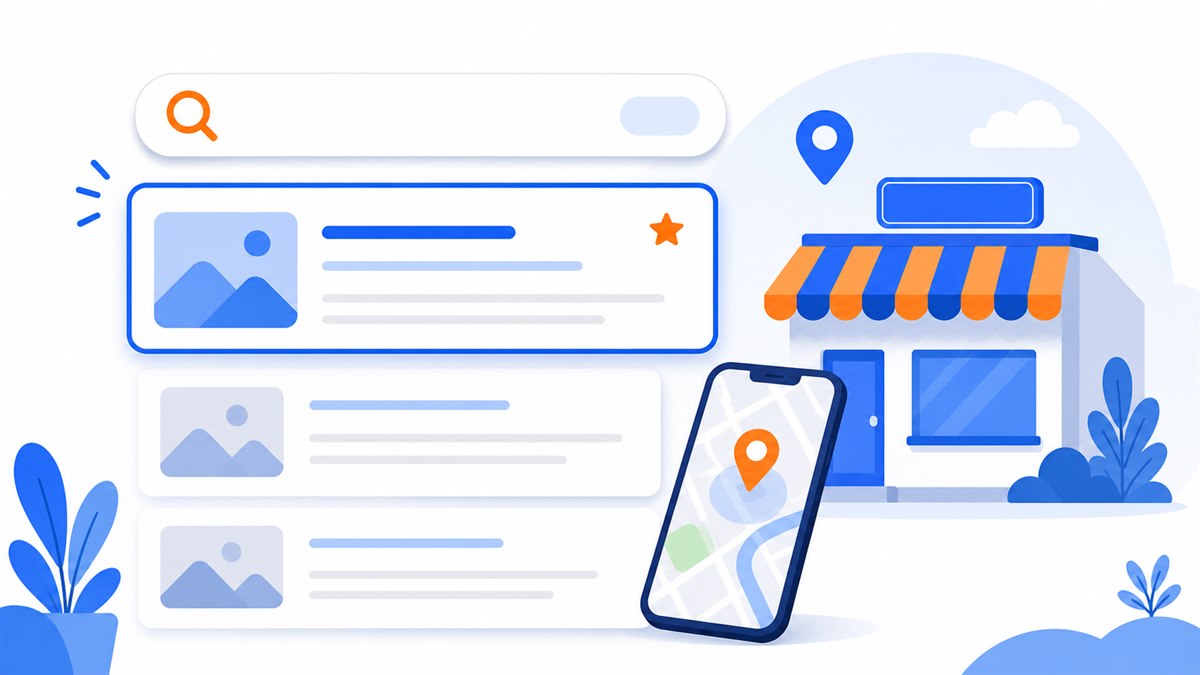
Try searching "coffee shop near me" or "phone repair near me" on your phone. Google returns a list with a map — a handful of names at the top, each with a star rating and photos. People tap those listings to call, get directions, or read reviews. If your shop isn't in that list, they'll walk into a competitor a few blocks away.
This article covers each step: creating your profile, filling in the right information, optimizing photos and hours, asking for reviews, and connecting Google Maps to your website. Follow it through and your shop shows up at the exact moment someone nearby pulls out their phone.
Why Google Maps matters for local businesses
People now search for a place to eat, get a haircut, or fix a phone by pulling out their phone and typing into Google — not by asking around. When they type "hair salon near me" or "pho in District 3," Google shows a set of listings with a map and gold stars right above the regular results. Those come from Google Maps profiles.
What makes Maps traffic so valuable is that those people are close by and ready to spend. Someone who searches "head spa near me" at 4 p.m. usually wants to go tonight, not just browse. Being on Maps means you're standing right in front of a customer at the exact moment they're about to open their wallet.
- Directions in one tap: your address becomes a guided route to your front door.
- Direct calls: there's a call button right on your profile — customers can book or ask about prices without saving your number.
- Star ratings: a shop with a 4.7-star average and 80 reviews gets far more taps than a blank listing next door.
- Completely free: unlike ads, you pay nothing for the customers who find you here.
Creating a Google Business Profile, step by step
What puts you on Maps is called a Google Business Profile — a free listing Google gives every business. Follow the steps below in order and you're done, no outside help needed.
- Open google.com/business or the Google Maps app and sign in with your Google (Gmail) account.
- Click Add a business and type your shop name exactly as it appears on your sign. Don't stuff in extra keywords like "Best Pho in District 1" — Google may suspend the profile.
- Pick the category that fits best: restaurant, hair salon, clothing store, spa, and so on. The wrong category means you won't appear when someone searches your type of business.
- Pin your location on the map precisely — drag the red pin to your actual entrance so customers aren't walked to the wrong address.
- Add your phone number and website if you have one. If not, leave it blank and come back later.
- Verify ownership: Google usually mails a code to your business address, or verifies by phone or video. Enter the code and the profile officially belongs to you.
The verification step takes the most time (a mailed postcard can arrive in a few days to over a week), but it's required. An unverified profile may still show up, but you can't edit the information and customers may not trust it.
Optimizing your profile: photos, hours, and description
Creating the profile just gets you on the map. To make customers choose you over the shop next door, the profile needs to look alive and trustworthy. A bare profile looks like a closed business — people scroll right past it.
Real photos, taken properly
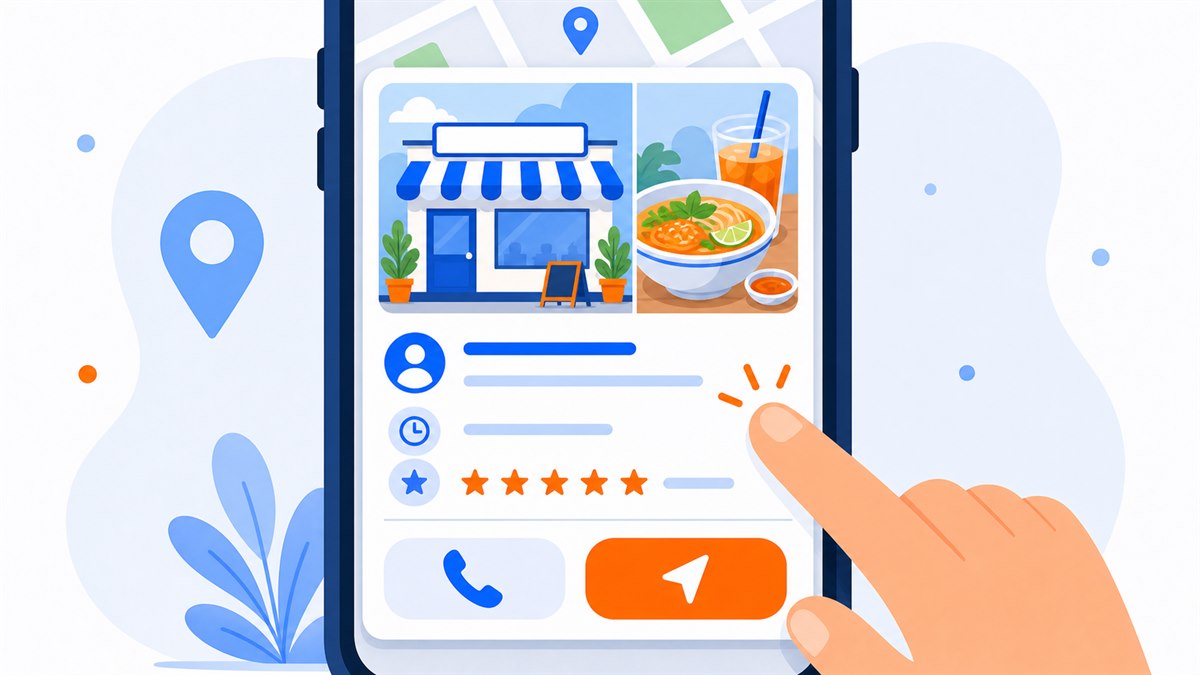
This is where profiles win or lose. Post a photo of your storefront so customers recognize it when they arrive, photos of the interior, and shots of your actual food or products. A hair salon should show a few real haircuts done for clients; a restaurant should show a steaming bowl of pho, not a stock image. Local customers can tell the difference between a real photo and a staged one at a glance.
Hours that are always accurate
Nothing frustrates a customer more than driving across town to find the door locked while Google says you're open. Set your real hours, and remember to add special closures for holidays. If you run a lunch shift and a dinner shift, you can enter both.
A short, specific description
Write a few sentences explaining what you sell and what makes you different: "Grilled pork chop rice on charcoal, open from 6 a.m., delivery available in Binh Thanh District." Specific descriptions both help customers understand you quickly and help Google know when to show you.
- Add a menu or price list if your type of business allows it — customers love knowing prices before they arrive.
- Turn on messaging so customers can ask a quick question right inside Maps.
- Post updates occasionally: promotions, new items, hour changes. An active profile ranks better than a dormant one.
How to ask for reviews — and how to respond
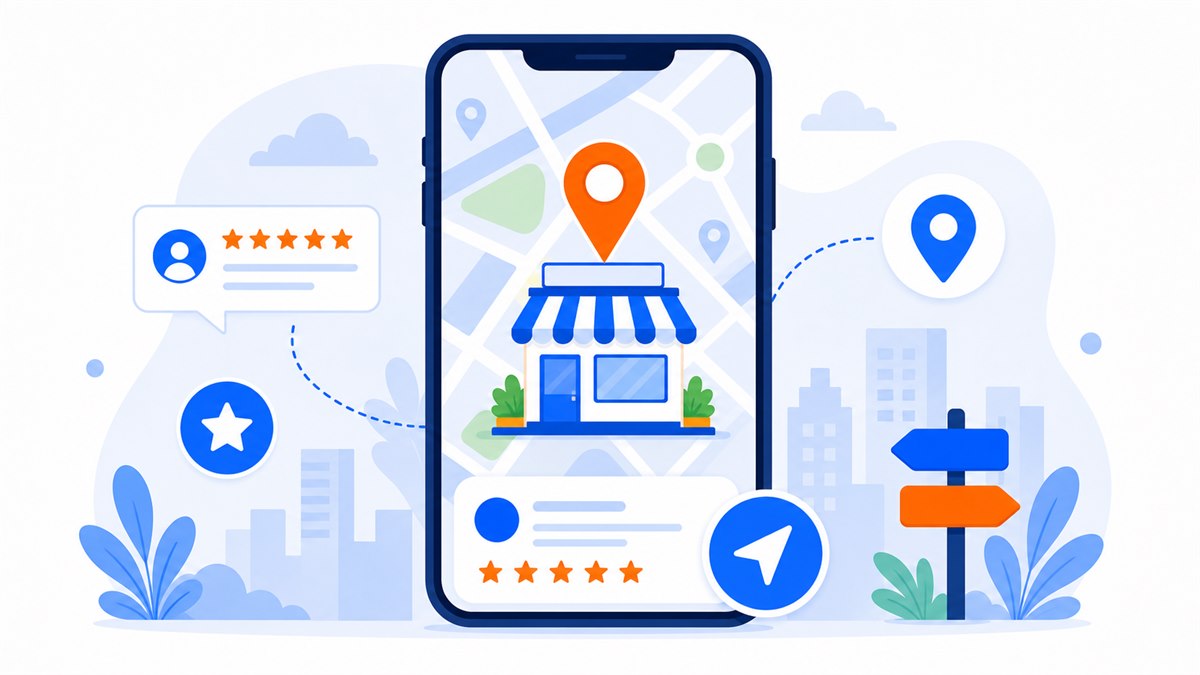
Reviews determine whether someone taps your listing or scrolls past. Between two spas side by side, people almost always pick the one with more stars and more reviews. The good news is you can ask for them proactively instead of waiting on luck.
The easiest approach: right after a customer finishes and is happy, ask them to leave a review. Grab your review link from the Google Business Profile dashboard, shorten it, and send it over — or print a QR code to stick at the checkout counter. One scan and they're straight to the review box.
A genuine ask at the right moment — when a customer is already happy — is worth more than any gimmick. Never buy fake reviews; Google detects them and the penalties are severe.
Equally important: respond to every review, positive and negative. Thank people who leave kind words. When someone leaves criticism, apologize calmly, explain how you'll address it, and invite them back. New visitors who see a polite, thoughtful response to a bad review will trust you more than they would a profile full of five stars where the owner never replies.
How to connect Google Maps to your website
Your Maps profile and website should work together. A customer finds you on Maps, taps through to your site to learn more, then decides to visit — and the reverse is true too: someone on your website needs a map to know how to get there.
- In your Google Business Profile, enter your exact website address. Your name, address, and phone number on Maps and on your site must match character for character — any mismatch and Google trusts both less.
- On your website, embed a Google Maps widget on the contact page so visitors can tap for directions. The embed code is free, straight from Maps.
- Display your contact details (address, hours, phone number) clearly on the site so they match Maps and give customers confidence.
A call button, Zalo chat, or Messenger button on your site also helps customers who arrive from Maps take action immediately. For a clean way to add those buttons, see Integrating Zalo, Messenger, and a Contact Form to Close Orders Fast.
Keeping your Maps and website information consistent is one piece of doing SEO properly. If SEO still feels vague, read What Is SEO? A Basic Guide for Business Owners to get the full picture first.
If you don't have a website yet, this is a good reason to build one soon. Many shop owners think a Facebook page is enough, but a dedicated website makes your Maps profile more credible and means you're not dependent on one platform. Why Small Businesses and Sole Traders Need a Website breaks down that argument in detail.
When building a website to support your Google Maps presence, prioritize mobile-first design, a clear address, an embedded map pointing to the right spot, and an easy tap-to-call button. A lean, consistent site that matches your Maps profile gives customers everything they need to check you out and get in touch.
Common mistakes when getting on Google Maps
Getting on Google Maps isn't hard, but these mistakes cause profiles to drop in rankings or get suspended. Avoiding them already puts you ahead of most competitors in the area.
- Stuffing keywords into your business name: calling yourself "Cheap Good Haircuts District 7" instead of your real name. Google treats this as manipulation and may suspend the profile.
- Inconsistent information: a different phone number on Maps than on your website. Customers can't reach you, and Google loses trust in both listings.
- Abandoning the profile: creating it and leaving it untouched for a year with no new photos or review responses. Dormant profiles slide down the rankings behind active competitors.
- Pinning the wrong location: a misplaced pin sends customers to the wrong address, they get frustrated and leave.
- Forgetting holiday hours: a customer who shows up on a public holiday and finds the door locked — even though Google said you're open — is a lost customer and a lost review.
- Buying fake reviews: the biggest risk. A few fabricated stars can get your whole profile penalized or removed.
The ongoing maintenance is simple: spend ten minutes a week glancing at the profile, responding to new reviews, adding a couple of photos, and checking your hours. Ten minutes a week for a steady flow of customers who find their way to your door — very much worth it.
Frequently asked questions
Does getting a business on Google Maps cost anything?
Nothing at all. You only need a Google account to create and verify a Google Business Profile. Google does not charge for your listing or for the customers who find you through it.
How long does it take for a shop to appear on Google Maps after signing up?
The profile can appear immediately after creation, but you need to complete verification before you can edit or optimize it. Verification by mail typically takes a few days to over a week. After verifying and filling in all the details, rankings usually stabilize within a few days to a few weeks.
Can I get on Google Maps if I don't have a physical storefront and only sell online?
Yes, if you deliver to customers or go to them (like a mobile mechanic or food delivery service). You can list a service area instead of a fixed address. If you sell purely online with no in-person contact, Maps is not the right channel — focus on your website instead.
Can I delete a one-star review?
You can't remove a genuine customer review yourself. You can flag it if it violates Google's policies (spam, offensive content, clearly false claims) and wait for Google to review it. The best response is a calm, polite reply that acknowledges the issue and offers a resolution — readers respect owners who handle criticism well.
Do I need a website to get on Google Maps?
No — you can appear on Maps without one. But having a website that matches your profile information makes Google trust both more and gives customers a place to learn more before visiting. It's worth building a site alongside your Maps optimization.
Need a professional website or landing page?
Web Trong Ngày delivers in 24 hours, all-in for $40 — preview the demo first, pay only when you are happy, own it for life.